Archive for February, 2011
Presenting with a Tablet PC: The iPad
3Although I don’t typically consider an iPad a Tablet PC, I know a number of readers have expressed an interest in projecting presentations using their iPad. I was listening to a podcast early this morning and heard a teacher talking about how he manages to do this, which especially caught my attention when he mentioned he uses it for Free Body Diagrams (aha! A physics teacher!).
The physics teacher uses an iPad coupled with the AirSketch application to project PDF files and then sketch on the iPad as he walks around the room. I don’t have much in the way of details past that, but I can tell you that you can find this short demonstration video in the video version of the iPad Today Podcast, Episode #33, about 43 minutes into the show.
Good luck all!
(Also of note, the creators of AirSketch, QRayon, also advertise a software program that allows you to wirelessly project without a USB dongle over WiFi with their software package Air Projector – Only ofr iPod Touch / iPhone, and soon for iPad, but could be another useful tool for iOS fans.)
Creating Instructional Videos with Tablet PCs
21One of the greatest benefits of using a Tablet PC is the ability to create short videos walking students through lectures or problem-solving exercises. Sure, you can create hand-outs showing step-by-step problem solving, but it’s hard to beat an audio and video combination where you explain each step as you perform it – not quite as good as the live instructor model, but a close second, especially in situations where you have students in your classroom working on different topics, or the student can’t be physically in the classroom!
Screen Capture Software
There are a variety of software packages available that allow you to do this, with just as wide a variety of bells, whistles, and prices. These “screen capture” packages record whatever is shown on your screen (or a subset of your screen) along with audio through a microphone input, and output a digital video file in one format or another.
Starting at the high end, Techsmith’s Camtasia Studio is the Cadillac of screen capture. Not only does it include just about any bell and whistle you can think of, it also includes an integrated editor that allows you to jazz up your video before publishing to formats ranging from Flash for the web to iPod-compatible videos to Youtube directly. The downside – it lists at $299, with an educational discount down to $179 (and if you do decide to go this route, I’d recommend going the extra mile and purchasing the bundle that includes SnagIt for $199, a screen capture utility that you’ll fall in love with). You can try it out for 30 days for free — its features certainly justify the price if you’re going to use the software extensively, but for just starting out, there are simpler and cheaper options.
At the next tier, you can find a wide variety of screen capture software from lesser-known and considerably lower-
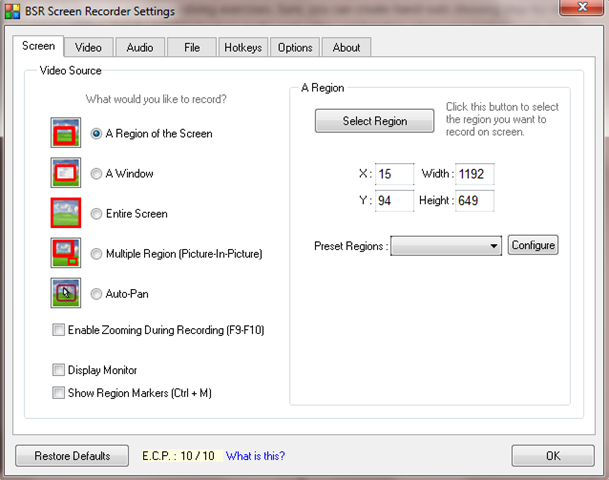
support firms. I’ve been using BSR Screen Recorder 4 over the past few years, which was roughly a $30 purchase at the time. The new version, BSR Screen Recorder 5, is available for download for $50, and includes output options to AVI, Flash, and WMV. I can’t speak to the newer version of the software, but BSR4 has performed admirably for me for videos of 10 minutes in length or less. I’ve used this software for everything from movie analysis problems to mini-lectures to flash video creation for the APlusPhysics.com website.
In general, the software works fine for its intended purpose, but if you run into trouble, I wouldn’t expect the same level of support you’d get from the higher-end products.
Another potential software package for video screen capture is the open-source (i.e. free) CamStudio, based off an earlier version of the now-commercial TechSmith Camtasia package. I haven’t used this myself, but it comes highly recommended from a well-respected colleague who has used it to make quite a number of instructional videos using his tablet pc.
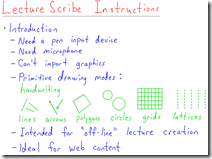
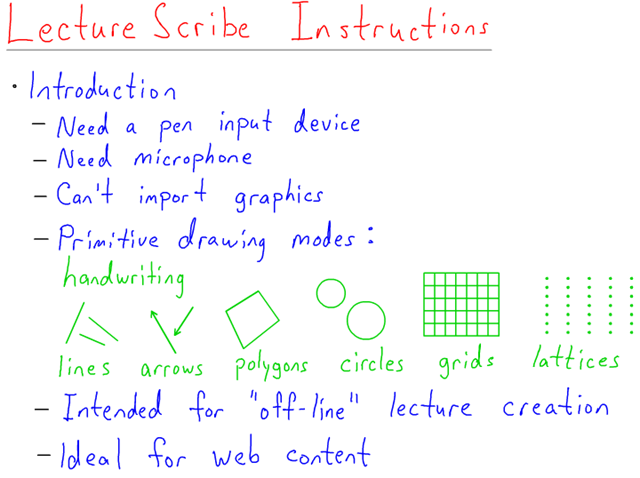
Finally, I’d like to point out a free software package called LectureScribe put together by Brian C. Dean, a computer science professor at Clemson University. LectureScribe is a slick little flash video creation program designed by a teacher for teachers. It takes a bit of getting used to, but if you want a no-frills package to get you started, LectureScribe is your answer!
Microphones
As far as microphones go, you can get away with the built-in mics in many laptops and web cams. Of course, with
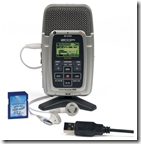
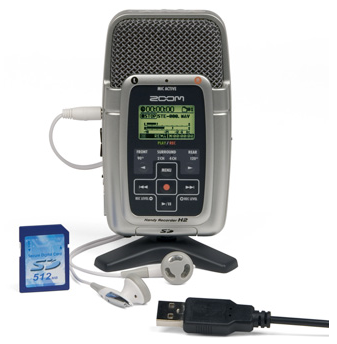
microphones, you typically get what you pay for. Decent USB microphones can be obtained for $30-$50. I use a Zoom H2 portable digital recorder ($145 at Amazon), purchased a couple years back as a multi-function device. Students use it in class for our Physics In Action podcast, I use it for creating multimedia videos, and outside of school I’ve used it for recording a reading of books onto CD for my daughter as a Christmas present. It’s a relatively high quality microphone that automatically converts its input into digital files, so it’s very portable, or you can plug it directly into a computer for use as a microphone. For simple video recordings, however, this is probably overkill.
Workflow
The easiest way I’ve found to create these videos is to place the problem in Bluebeam PDF Revu before starting the recording. Then, set up your microphone and screen capture software to record the Bluebeam window. Next, solve the problem just as you would in your class, explaining your steps as you go. Finally, hit the “stop record” button in your software, and save your video file to a format that best meets your needs!

10th Annual Adam Milne Charity Basketball Game
1
For the tenth year in a row teachers, administrators, and staff from Webster Thomas High School and West Irondequoit High School will compete in a basketball game remembering Adam Milne to raise money for the Leukemia Lymphoma Society. The game is scheduled for Friday, March 4, at 7 p.m. at Irondequoit High School.
Adam was a social studies teacher at Irondequoit High School who was married to a teacher from Webster for three months, until he passed away of leukemia. Adam made a profound impact on his students and colleagues, living his motto, “Go Forth and Spread Joy.”
Like most charity basketball games, you’ll find quite a mix of talented, experienced, athletic players, along with plenty of us uncoordinated rookies who run around in circles, have fun, and are just proud if the ball hits the backboard!
You can help by coming to the game, sponsoring a player, or making a donation to this worthy cause in a fun and exciting event. Tickets will be sold only at the door on a first come, first served basis. There will be 600 gym tickets sold, $5 for students and $7 for adults. For any more than 600 people arrangements are being looked into sell additional seats in the auditorium to view a live feed. If feasible, those tickets would be $2.
Personal and/or corporate donations may be made by contacting Lou DiCesare at Louis_DiCesare@westiron.monroe.edu.)
APlusPhysics XtraNormal Promo Video
3Was playing around with XtraNormal.com this morning after hearing about it on the Cool Teacher Podcast last night. Looks like there’s a ton of potential for student projects using this medium, and they provide enhanced accounts for educators!
Presenting and Blogging with a Tablet PC
10In order to present content with a tablet PC, you need to have a way to project your tablet’s screen… I know of several teachers who clone their screens onto a large television in their classrooms, but far more effective is the Tablet PC in combination with a digital projector. Connection between the PC and the projector can typically be accomplished with standard VGA or DVI cabling.
Wireless Projection
For cases where the projector is ceiling mounted, or where you’d like a little more freedom to wander about the room with your tablet, there are a number of wireless connection systems that send a video signal from the tablet to the projector. Some wireless projection vendors and dealers include:
I’m currently using an IoGear Wireless USB 2.0 to VGA Kit – it’s functional, but a little shaky when projecting video, as it appears to lose frames due to connection speeds. There are other systems with enhanced specifications, but overall, this appears to be a fairly solid option for the price.
Presentation Software
Next, you need software for your presentations. Microsoft Journal is free and comes pre-installed on most Windows OS tablets, and is a great starting point. However, it does have some limitations with regard to saving files in an easily accessible format, and its cut / paste abilities and editing are somewhat limited.
Microsoft OneNote is a terrific software package for taking and organizing notes, with solid tablet PC support. However, it lacks a few features compared to our next software package, Bluebeam PDF Revu, that make it a distance 2nd choice for presentations in the front of the classroom:
- Poor printout control
- Fair stylus pressure sensitivity
- Poor quality inking (especially upon printing)
- OneNote 2007 had quite a few bugs that were never fixed
- OneNote 2010′s “Ribbon” interface isn’t well-optimized for Tablets
- Lacks grids, curves, good print-out options, customized pens and arrows, dashed lines, embedded hyperlinks, etc
I love OneNote for taking notes and organizing all my class files — my entire courses are organized in there. It’s been my mainstay application for several years (just in the past few months have I begun to switch over to Evernote for its integrated search capabilities and multi-platform accessibility). But for presenting and inking, Bluebeam Revu just feels much more natural, more efficient, and the resulting documents look much cleaner. I’d recommend giving it a try — I’d love to hear what you think if you do decide to give it a test drive!
Evernote is a free software package that competes with Microsoft OneNote for “best note-taking software package.” It, too, is a great tool for organizing files, and includes the ability to scan images and PDFs. You can create “inked” notes in Evernote, and although this is a great organization and note-taking software package, compatible with Tablet PCs, its forte is not presentations, and although I would rank it above OneNote for note-taking applications, it falls into a distant third for presentation software. Note that Evernote does offer a premium subscription ($5/month or $45/year) that includes a larger monthly data limit as well as integrated PDF scanning and unlimited file attachment types. I have used OneNote for years for organizing files and notes, and its “feel” for organization is preferably to Evernote’s, but Evernote’s multi-platform syncing ability is leading me to transfer my files to Evernote. (Note: OneNote does have some capability on iOS devices with a recently-released app from Microsoft, or third-party software package MobileNoter ($1.25/month), but both applications feel clunky compared to Evernote’s interface).
Much more popular with Tablet PC users is Bluebeam PDF Revu, a full-featured PDF program designed with Tablet users in mind. It features pressure sensitivity, a variety of pens and colors, geometric shapes such as circles, lines, arrows (great for vectors), text options, superscripts and subscripts, hyperlinks, and a built-in camera tool that copies whatever’s selected to the clipboard. It’s available at a discount of $75 for educators at the Bluebeam Education Store. I’m not usually one to spend much on software, especially when there are cheaper alternatives available, but the money I’ve spent on Bluebeam PDF Revu is one of the best investments I’ve made and has paid for itself in productivity many times over.
Finally, Bluebeam’s much more popular PDF authoring software, Adobe Acrobat, is available for roughly $120 for educators (compared to a list price of ~ $450). Although it has more general PDF features than Bluebeam, its “feel” when inking on a tablet just doesn’t match Bluebeam PDF Revu’s performance.
The summary, in order of preference, for presentation software:
- Bluebeam PDF Revu
- Microsoft OneNote
- Adobe Acrobat
- Microsoft Journal
- Evernote
Offline Blogging Software
For those interested in taking their classroom presentation content and quickly and easily posting this material to a classroom blog, I would highly recommend offline blogging software. Regardless of software choices, you can save captured images as files, then upload them to the blog of your choice. Getting your content onto a blog almost effortlessly, however, takes a little more thought.
Most popular blogging platforms support offline content creation, which means you can write your blog posts in a separate program, hit the “Publish” button, and your content then shows up on your blog. To do this effortlessly as a Tablet PC user, however, you want a streamlined workflow that is quick, easy, and second nature. There are many good choices for blogging platforms, but for the classroom I would recommend one of these three free and popular choices:
Following many, many hours of trial and error with different combinations of software packages, I’ve come to the conclusion that the only way to seamlessly publish the content you want on your blog directly from your presentation software is to copy your selection, then paste that image directly into your blogging software. The problem – not many offline blogging software packages support this functionality. The good news – the best options for this functionality are completely free!
Windows Live Writer 2009 was available directly from Microsoft for free as part of their “Live” pack and allows you to cut and paste graphics directly into your blog posts, then upload. Unfortunately, this functionality was lost with the “upgrade” to Windows Live Writer 2011. If you have a copy of Windows Live Writer 2009 on your system, I recommend not upgrading. If you don’t have Live Writer 2009, you may have to go to our second option, as Live Writer 2011 won’t work for our purposes.
Zoundry Raven is an open-source (free) offline blogging system that has a number of terrific features, most importantly, it supports cut and paste of graphics directly from your presentation software.
Once you have these installed, your workflow becomes very quick and straightforward:
- Write on your tablet PC and project your screen using your presentation software
- At end of class, open your offline blogging software (Live Writer 2009 or Zoundry Raven)
- Copy and paste from your presentation software to your blogging software
- Publish from your blogging software to your classroom blog
For more hints and tips, check out “Tablet PCs in the Classroom“